Mrarranger
Back to Shop
Chrome Extension
MAGLAB MUSIC AUTOMATION

MAGLAB Music Automation

Prepare AI-assisted song batches, manage multiple workspaces, monitor or recover automation, and export SongJob files into the MAGLAB pipeline.

Price

$119

One-time · 2 devices

Store listing still in review
MAGLAB Music Automation

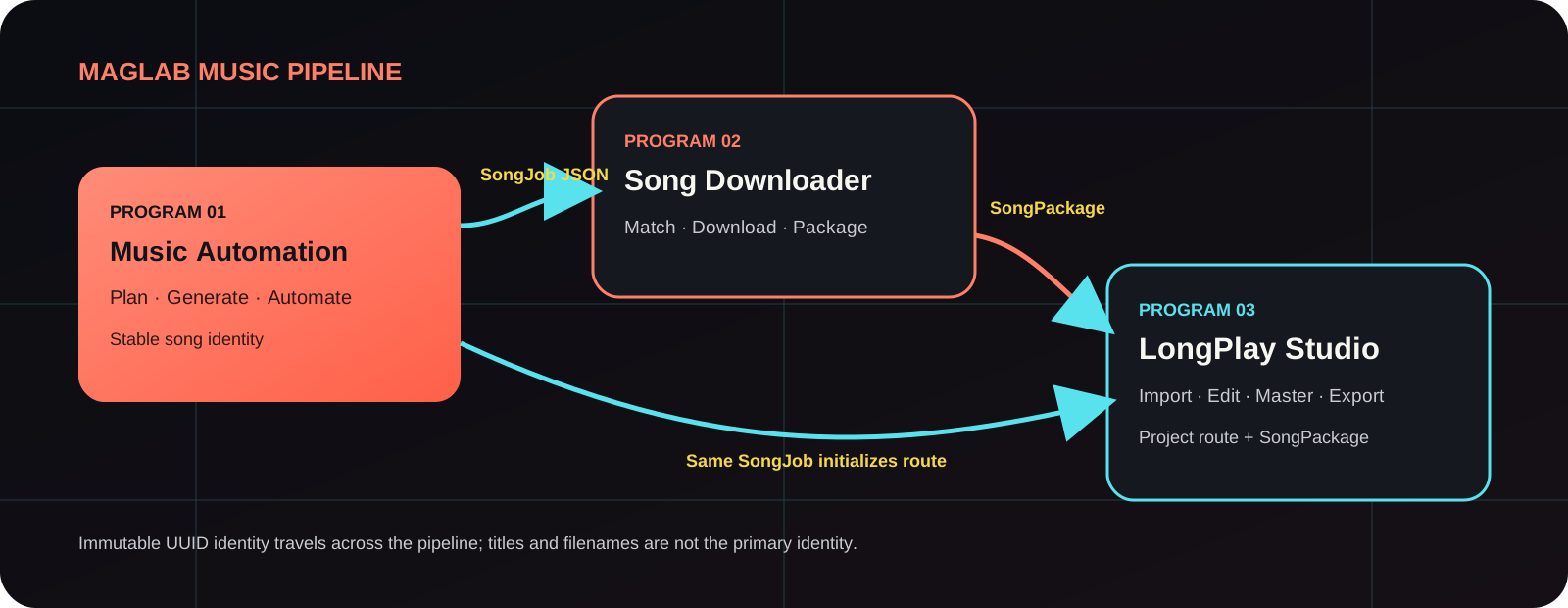
Program 01 of the MAGLAB pipeline turns a brief, reference or structured recipe into reviewable lyrics, styles and titles, then controls a visible per-tab queue on Suno. Export a stable SongJob for MAGLAB Song Downloader and LongPlay Studio without putting full lyrics, style prompts or secrets in the handoff file.

Privacy

API keys and extension settings are stored locally in Chrome. When an AI feature is used, the required prompt or song content is sent only to the AI provider selected by the user. Pro activation sends the license key and a device identifier to the MAGLAB licensing service only to verify entitlement and device limits.
Independent product and content rights

References to Suno are made solely to describe compatibility. MAGLAB Music Automation is an independent product and is not affiliated with, endorsed by, sponsored by or officially connected with Suno.

1–50

Quick planning

1–1,000

Album planning

10

Files in the visible queue

5

Prompt languages

These are extension workflow limits, not guaranteed generation counts. Real output remains subject to your plan, quota, rate limits and the terms of Suno and each AI provider.

PROGRAM 01 · MAGLAB PIPELINE

From a song idea to a reviewable, transferable run

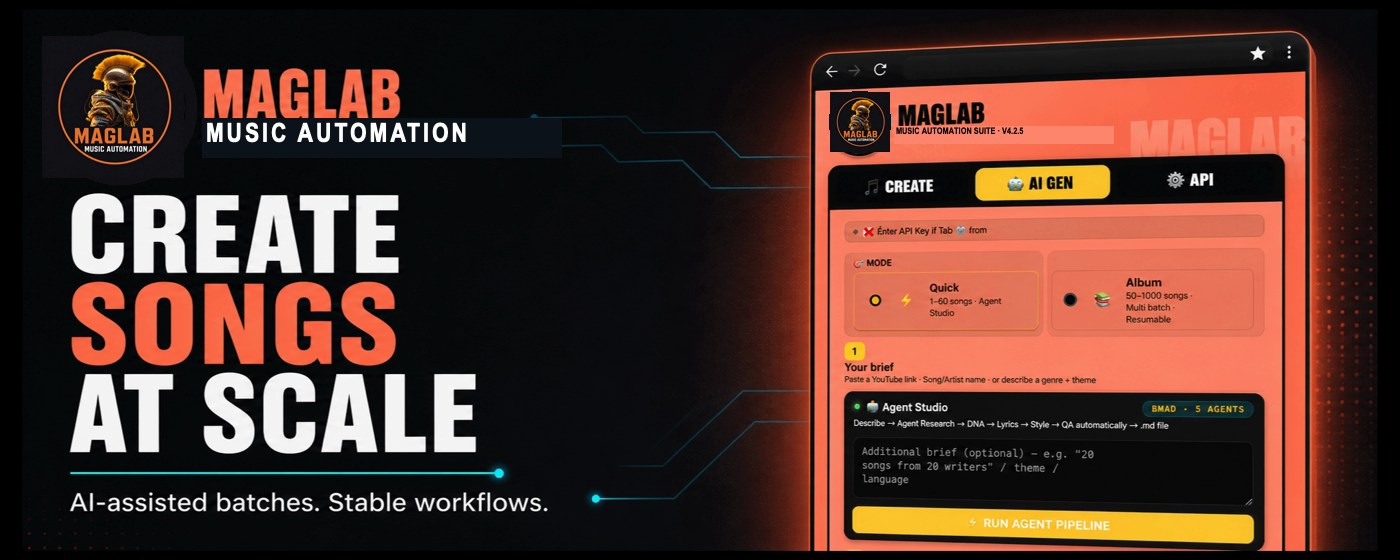
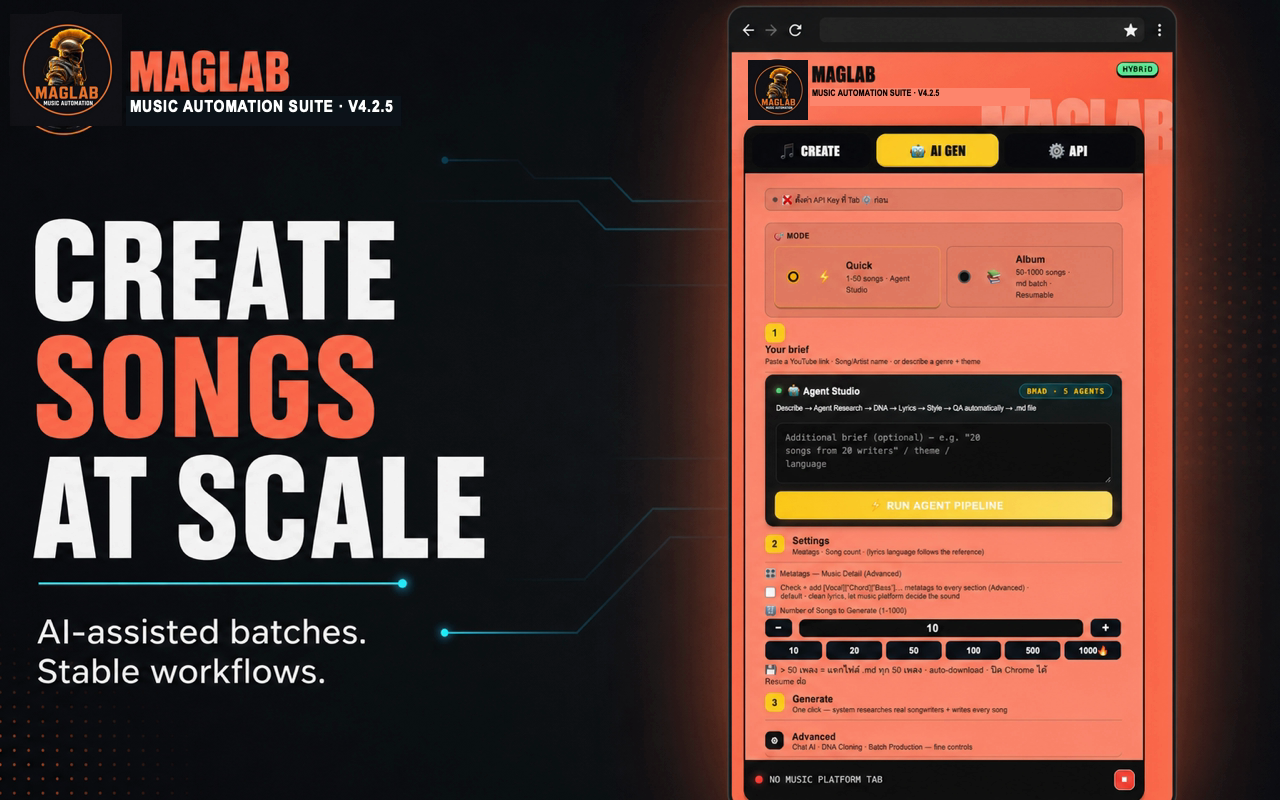
Turn a brief into a production-ready song plan

01 · PLAN

Turn a brief into a production-ready song plan

Use AI GEN to prepare lyrics, a Suno-safe style prompt, title and advanced settings, then review the output before anything is added to a run.

A visible queue—never a blind automation loop

02 · RUN

A visible queue—never a blind automation loop

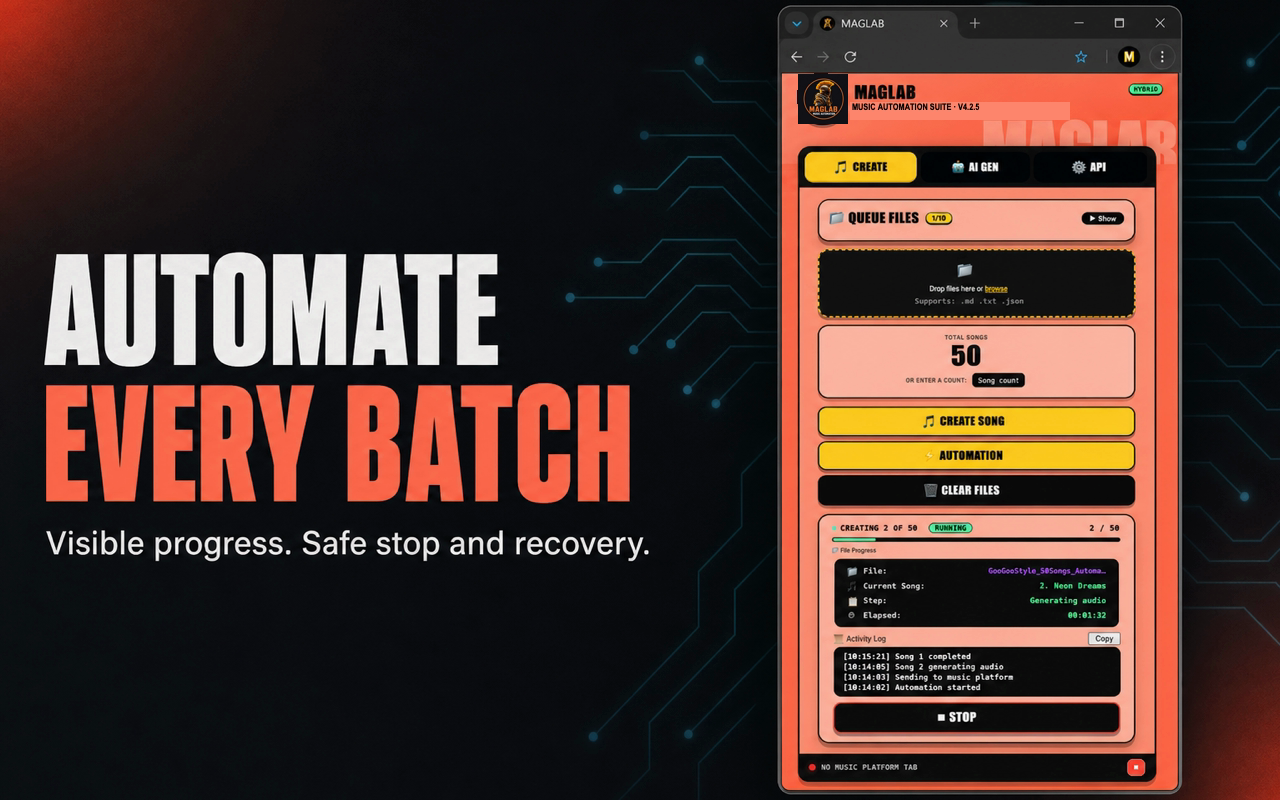
Bind the run to the exact Suno tab and workspace. Follow each item through progress and activity logs, or stop before another action is committed.

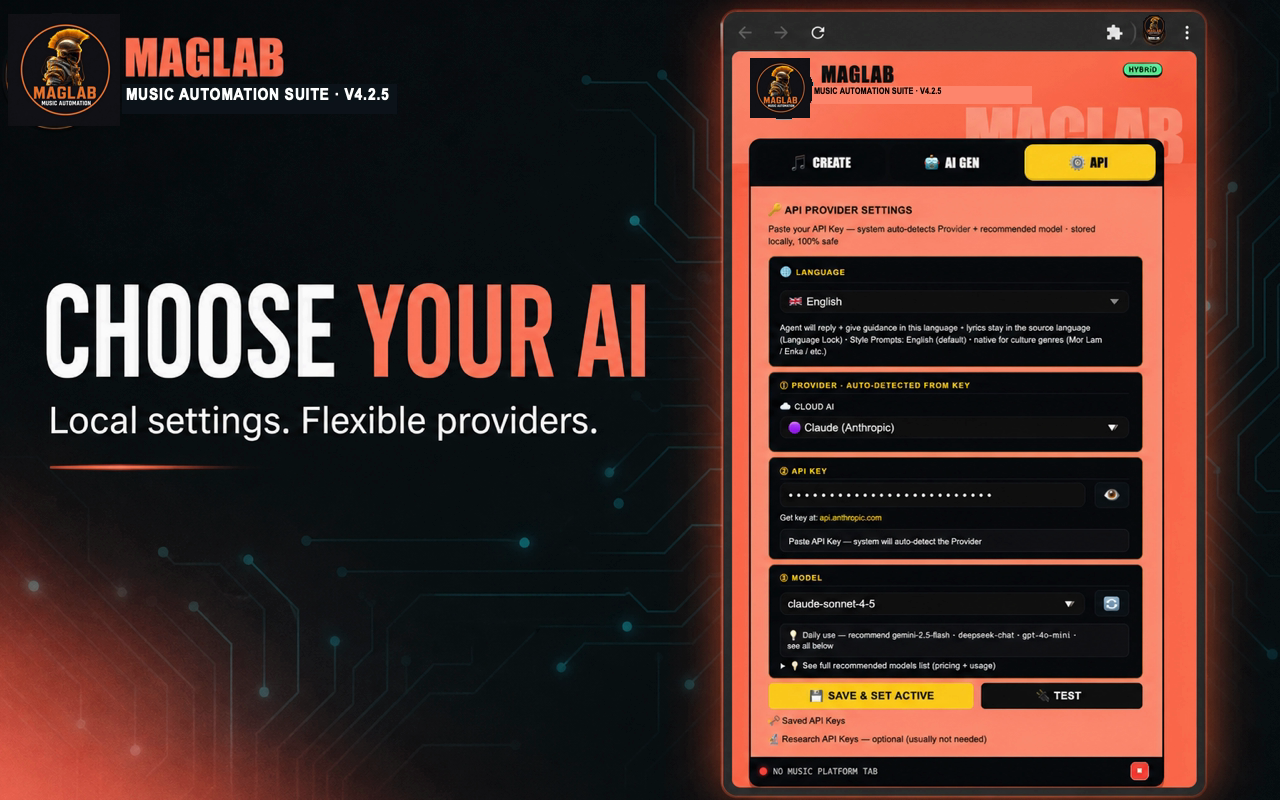
Cloud, local or OpenAI-compatible—your choice

03 · CHOOSE YOUR AI

Cloud, local or OpenAI-compatible—your choice

Configure the provider and model you want. Credentials stay in extension-local storage and are never included in SongJob exports.

MAGLAB MUSIC AUTOMATION

Where each core tool lives and what it does

Create songs at scale

Create songs at scale

Prepare and review song recipes in a visible workspace before starting automation.

Automate batches

Automate batches

Monitor progress and diagnostics, then stop or recover work without losing the queue.

Choose your AI

Choose your AI

Use the cloud, local or OpenAI-compatible provider that fits your workflow.

QUICK START · FOLLOW EACH SCREEN

From first install to pipeline handoff

Every image is based on the real extension interface. Follow the sequence and validate one test song before scaling into a batch.

  1. STEP 01 · INSTALL

    Install from the Chrome Web Store and open the side panel

    Use Chrome 116 or later. Install from the Store when the listing is live, or load unpacked 4.2.6 from the delivery email after buying Pro, then pin MAGLAB Music Automation.

    Before starting, verify the exact account and workspace you intend to use.

    Install from Chrome Web Store

    The Chrome Web Store listing is still under review. Pro buyers can load unpacked 4.2.6 from the delivery email right away.

    If the install button is disabled, leave Guest/Incognito mode and reopen the link in a regular Chrome window.

    1. chrome web store

      Sign in

      MAGLAB Music Automation

      maglab-ai.com

      Add to Chrome
      1

      Open the Chrome Web Store listing

      Verify the publisher and details, then select Add to Chrome.

    2. Add MAGLAB Music Automation?

      Chrome shows the permissions the extension needs before installation.

      CancelAdd extension
      2

      Confirm the installation

      When Chrome asks for confirmation, select Add extension.

    3. Extensions
      Chrome

      MAGLAB Music Automation

      Ready to open the side panel

      3

      Pin it to the toolbar

      Open Extensions and pin MAGLAB Music Automation for quick access.

    4. 4MAGLAB Music Automation after opening the side panel

      READY TO START

      Open the side panel

      Open a supported work tab, then select MAGLAB to begin setup.

      1. 1Open suno.com and sign in to an account you are authorized to use
      2. 2Open MAGLAB from the Extensions menu or Chrome side panel
  2. 2Choose an AI provider and test the connection

    STEP 02 · CONNECT AI

    Choose an AI provider and test the connection

    Open API, select a language, provider and model, then add your own key or use a configured local provider.

    • 1Choose a cloud, local or OpenAI-compatible provider
    • 2Select Save & Set Active to store the configuration on this device
    • 3Select Test and continue only after the connection succeeds

    Cloud API usage may be billed separately by the provider you choose.

  3. 3Choose Quick or Album and enter the brief

    STEP 03 · PLAN

    Choose Quick or Album and enter the brief

    Quick is designed for 1–50 songs. Album plans larger runs up to 1,000 songs with split files and resume support.

    • 1Paste a YouTube URL, song/artist name, or describe a genre and theme
    • 2Set the song count and enable metatags only when needed
    • 3Run the Agent Pipeline and review the resulting lyrics, style and title

    Start with one song to validate language, format and output quality.

  4. 4Review style prompts and configure the batch

    STEP 04 · REVIEW

    Review style prompts and configure the batch

    Select approved prompts, choose Fixed or Variation, and confirm the song count before generating a .md file or adding work to the queue.

    • 1Edit or add prompts in My Prompts
    • 2Choose Fixed for one direction or Variation for controlled diversity
    • 3Review the song count, then generate or import the .md file

    Runner style prompts must remain within 1,000 characters per song.

  5. 5Import the queue, choose the Suno tab and start automation

    STEP 05 · RUN

    Import the queue, choose the Suno tab and start automation

    Return to CREATE, import .md, .txt or .json, review each title, lyric and style, then bind the run to the intended tab.

    • 1Use Create Song for one item or Automation for the complete queue
    • 2Review the human gate before an action that may consume credits
    • 3Monitor progress and the activity log, or select Stop when needed

    If the tab or workspace is wrong, stop and select it again before continuing.

  6. 6Export SongJob and continue through the MAGLAB pipeline

    STEP 06 · HANDOFF

    Export SongJob and continue through the MAGLAB pipeline

    Choose a friendly Project, Production Channel and Volume, then export a SongJob JSON that preserves the work's identity.

    • 1Create or choose a Project and Production Channel
    • 2Set the Volume and export SongJob JSON
    • 3Use the same JSON with MAGLAB Song Downloader and LongPlay Studio

    SongJob excludes full lyrics, full style prompts, API keys, tokens and cookies.

Quick · 1–50

Best for drafting a set, testing a direction or preparing a batch that needs item-level review.

Album · 1–1,000

Best for large-project planning, estimating scale and structuring work before provider resources are used.

SONGJOB · LOCAL ARTIFACT HANDOFF

Human-friendly names with machine-stable identity

Choose a friendly Project, Production Channel and Volume. Stable job and song UUIDs let Downloader and LongPlay identify the same work without guessing from filenames.

Project / Channel / Volume
Schema-valid SongJob
No secrets in the handoff
Program 01 → 02 → 03
MAGLAB Music Automation to Downloader and LongPlay Studio flow

Choose the AI that fits your workflow

Cloud APIs may charge separately. Local providers are installed and maintained by the user. MAGLAB does not place provider keys in the content script or SongJob.

OpenAIAnthropicGoogle GeminiDeepSeekOpenRouterGroqMistralTogether AIFireworksCerebrasxAIPerplexitySambaNovaMoonshotZhipuOllamaLM Studio

Your credentials stay local

Keys are stored in extension-local storage and external requests are orchestrated from the service worker.

Human-gated paid action

Review the selected tab, workspace and item before a Create action that may consume credits.

No hidden Free/Pro gate

The currently published runtime has no quota counter, trial lock, Pro activation or device entitlement.

Need help planning the workflow before you start?

Send MAGLAB your song count, input format and current workflow for a practical review.

Talk to MAGLAB

Frequently asked questions

Does MAGLAB Music Automation download the finished audio?

No. Program 01 prepares and controls generation. Export the SongJob and use MAGLAB Song Downloader for owned-media download and packaging.

How many songs can I plan?

Quick planning supports 1–50 songs and Album planning supports up to 1,000. The visible import queue accepts up to 10 files; actual generation remains subject to Suno and provider limits.

Do I need my own AI provider key?

Cloud providers use credentials you supply. Local providers such as Ollama or LM Studio can be configured instead. Provider charges are separate from MAGLAB.

Is MAGLAB Music Automation divided into Free and Pro modes?

Yes. Free includes the existing preparation, AI, editing and SongJob tools, and can complete 10 verified song creations per Chrome installation. Pro is a one-time website purchase that unlocks unlimited automation on up to 2 devices. Paste the license from the delivery email into LICENSE, then Activate this device.

What is stored in a SongJob?

Stable project, channel, volume and song identities plus allowed matching metadata. It intentionally excludes full lyrics, full style prompts, API keys, tokens, cookies and authorization data.

Ready to start using MAGLAB Music Automation?